
Download FlashPrint — Free 3D Slicer
Prepare your 3D models for printing with FlashForge’s official slicer. Auto-repair, tree supports, WiFi printing, and dual-extruder control — all free, no account needed.
Advanced tree supports for cleaner removal and better surface finish on complex prints
Send print jobs, monitor progress, and control your printer directly over your local network
Fine layers where you need detail, thick layers where you need speed — all in one print
What Is FlashPrint?
The official 3D printing slicer from FlashForge, used by hobbyists and classrooms around the world
FlashPrint is a free 3D printing slicer developed by FlashForge Technology Co., Ltd., one of the most established consumer 3D printer manufacturers in the world. The FlashPrint app converts 3D model files — STL, OBJ, and 3MF formats — into G-code instructions that FlashForge FDM printers can follow to build physical objects layer by layer. It is available for Windows, macOS, and Linux at no cost.
FlashForge designed FlashPrint specifically for their printer lineup, which includes popular models like the Adventurer 3, Adventurer 4, Creator Pro, Dreamer, Guider IIS, and Finder series. Out of the box, FlashPrint includes pre-tuned profiles for every FlashForge printer, so beginners can start printing with minimal configuration. More experienced users can switch to Expert Mode to access the full range of slicing parameters.
Who Is FlashPrint For?
FlashPrint is ideal for anyone who owns a FlashForge 3D printer. It is particularly popular in education settings — K-12 schools and universities use it because the Basic Mode offers a simplified, one-click slicing workflow that students can learn quickly. Hobbyists and makers also rely on it for everyday printing, especially those who value the built-in WiFi printing and camera monitoring features that let you send jobs and watch progress remotely from the same software.
Key Capabilities
Beyond basic slicing, FlashPrint handles automatic model repair (fixing mesh errors like gaps and non-manifold edges), generates both linear and tree support structures, supports dual-extruder printers with per-nozzle material settings, and offers variable layer height for mixing fine detail with fast printing speeds in a single job. The current version is FlashPrint 5.8.7, the final release of the FlashPrint 5 series before FlashForge transitioned newer printers to their Orca-FlashForge slicer.
FlashPrint vs Other Slicers
Compared to general-purpose slicers like Cura or PrusaSlicer, FlashPrint trades breadth of features for simplicity and tight integration with FlashForge hardware. If you own a FlashForge printer and want the fastest path from model to print, FlashPrint is the right tool. If you need advanced plugin support, community profiles for dozens of printer brands, or open-source flexibility, Cura or PrusaSlicer may be a better fit.
Key Features
Everything you need to prepare, slice, and manage your 3D prints in one application
Auto Model Repair
FlashPrint automatically detects and fixes mesh errors during import — gaps, holes, non-manifold edges, and intersecting surfaces — so your models are print-ready without manual cleanup.
Tree Support Generation
Generate advanced tree-like support structures that branch from the build plate upward, minimizing contact with the model surface for easier removal and cleaner finishes on complex prints.
WiFi Remote Printing
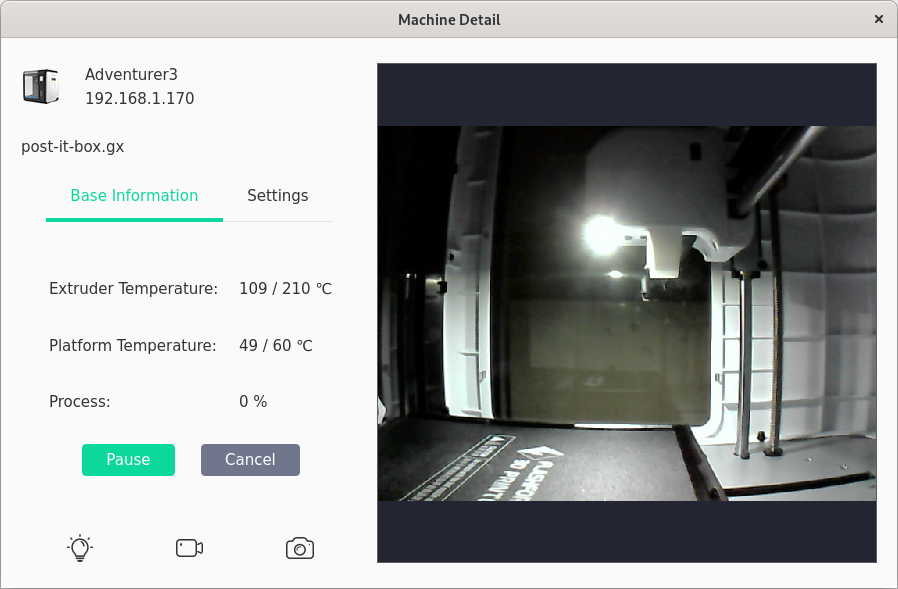
Send print jobs to your FlashForge printer over WiFi without USB drives. Start, pause, resume, or cancel prints directly from FlashPrint while monitoring progress in real time.
Variable Layer Height
Assign different layer heights to specific parts of your print — use fine layers for detailed areas and thicker layers for flat sections — to cut print time without sacrificing quality.
Basic & Expert Modes
Basic Mode gives beginners one-click slicing with optimized presets. Expert Mode unlocks full control over layer height, infill, speed, temperature, retraction, cooling, and support settings.
Camera Monitoring
View a live camera feed from compatible printers (Adventurer 3, Adventurer 4, Adventurer 5M) directly in FlashPrint. Watch your print build up layer by layer without leaving your desk.
Dual Extruder Support
Assign different materials or colors to each extruder on dual-nozzle printers like the Creator Pro. Set individual temperatures, retraction, and flow rates per nozzle for multi-material prints.
Model Cutting & Batch Print
Split large models along any plane to print them in sections, or duplicate models across the build plate for batch production. Preserve settings when copying for consistent results.
Relief & Lithophane Design
Import PNG, JPG, or BMP images and convert them into 3D relief or lithophane models directly in FlashPrint. A unique feature not found in most competing slicers.
System Requirements
FlashPrint is lightweight and runs well on most modern PCs and laptops
| Component | Minimum | Recommended |
|---|---|---|
| Operating System | Windows 10 (64-bit) | Windows 10/11 (64-bit) |
| Processor (CPU) | Intel Core i3 or equivalent | Intel Core i5 or better |
| RAM | 4 GB | 8 GB or more |
| Disk Space | 500 MB free | 2–4 GB free (for models and temp files) |
| GPU | Integrated, OpenGL 2.0 | Dedicated GPU, OpenGL 3.0+ |
| Display | 1280 × 720 | 1920 × 1080 |
| Internet | Not required for slicing | Required for WiFi printing & updates |
FlashPrint also runs on macOS 10.8+ and Linux (Flatpak, AUR, and .deb packages available). The installer is approximately 41 MB.
Download FlashPrint 5.8.7
Get the latest version of FlashForge’s official 3D printing slicer – free for Windows, macOS, and Linux
All downloads are sourced directly from FlashForge’s official servers. Visit FlashForge Download Center
Screenshots
See FlashPrint’s interface and tools in action
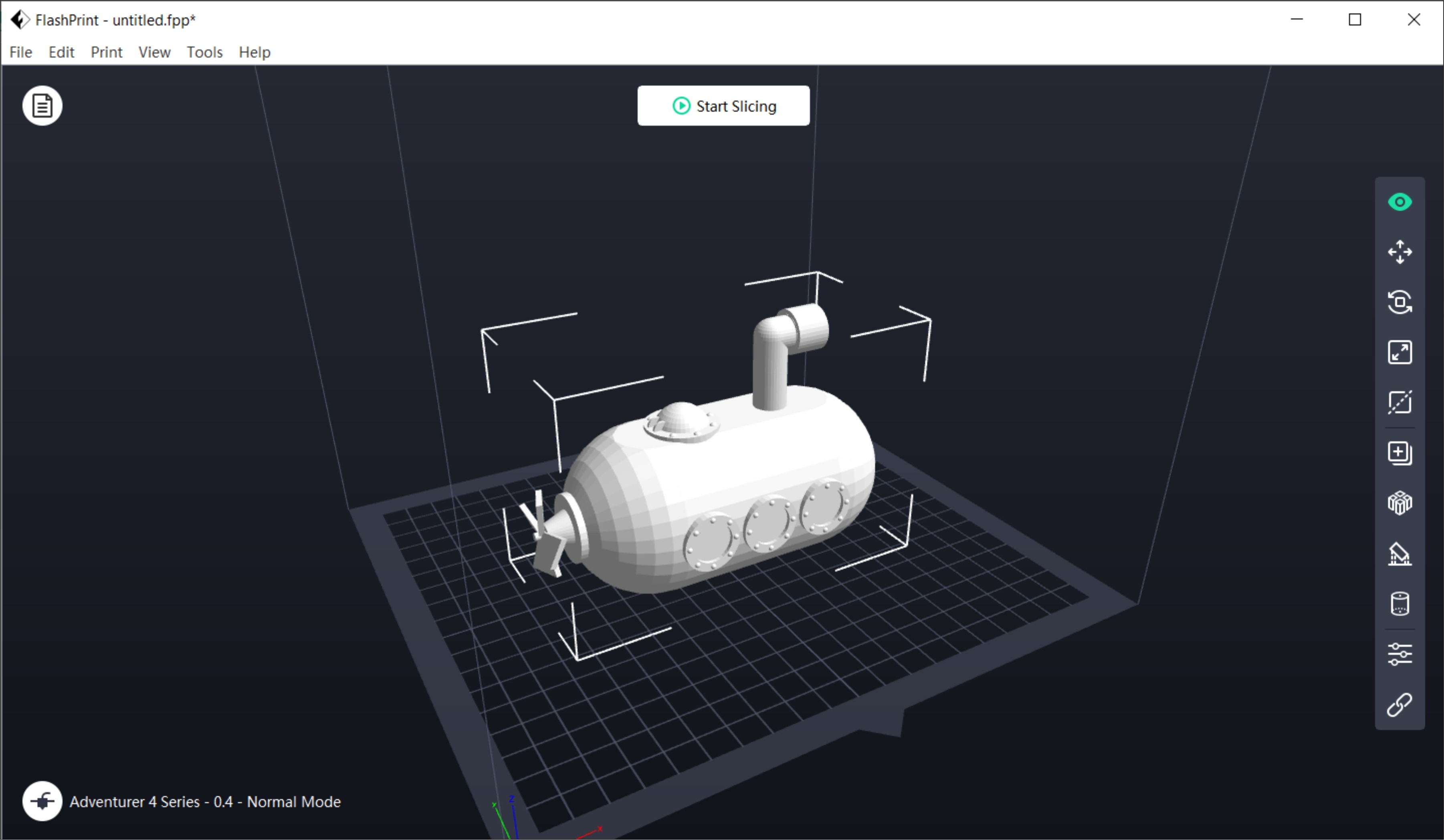
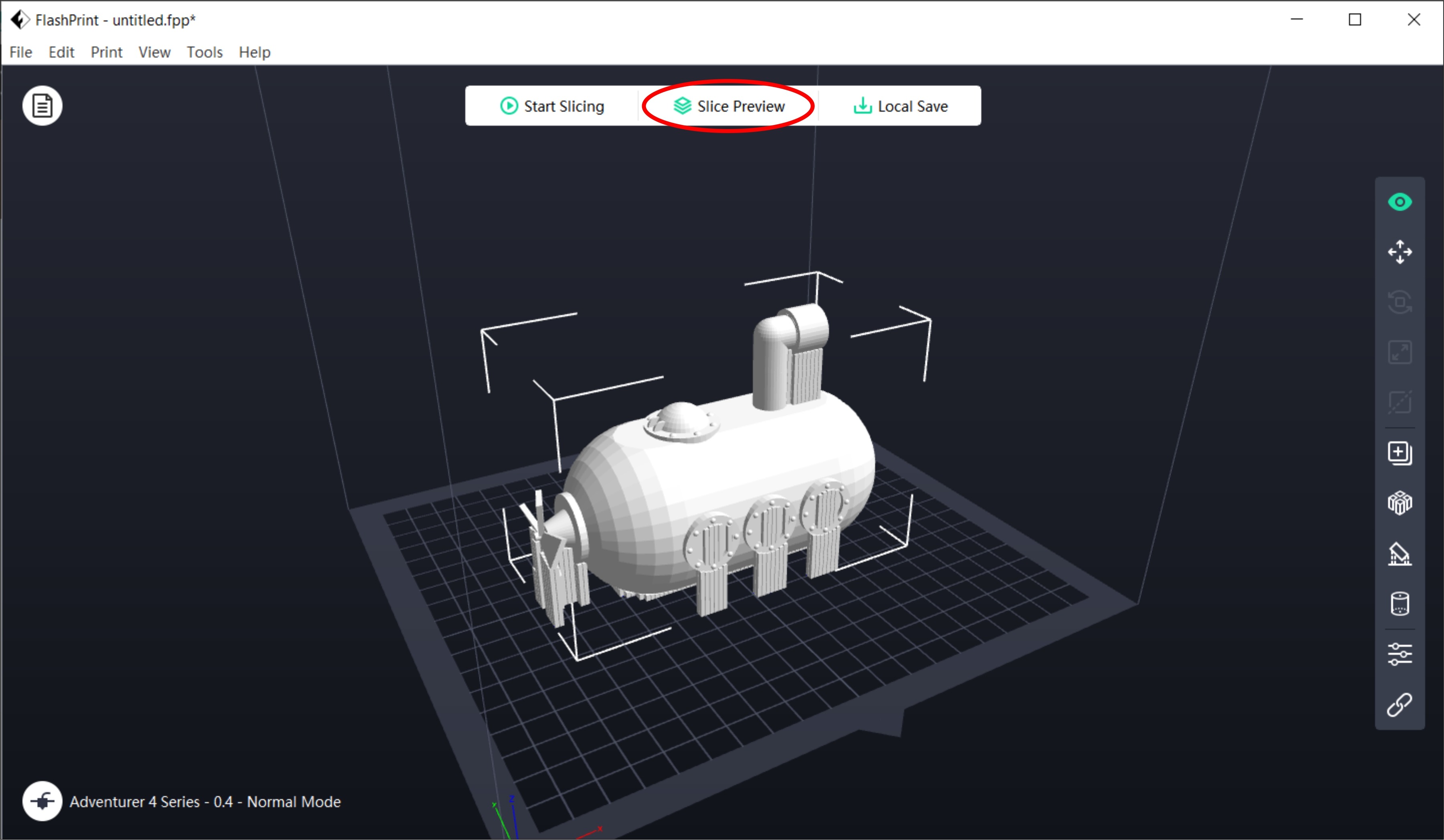
How to Install FlashPrint
A step-by-step guide from download to your first sliced model
Download the Installer
- Visit our download section above and click the Download FlashPrint 5.8.7 button.
- Your browser will begin downloading
FlashPrint 5_5.8.7_x64.exe(approximately 41 MB). - If your browser shows a security warning (common for .exe downloads), click “Keep” or “Download anyway”. The file is safe and comes from FlashForge’s official servers.
Install FlashPrint
- Locate the downloaded FlashPrint 5_5.8.7_x64.exe file in your Downloads folder and double-click it to launch the setup wizard.
- When the Windows User Account Control (UAC) dialog appears, click “Yes” to grant the installer administrator permissions.
- Click “Next” on the welcome screen to proceed.
- Read and accept the license agreement, then click “Next”.
- Choose your installation directory. The default location is
C:\Program Files\FlashForge\FlashPrint 5\— this works fine for most users. - Click “Install” and wait for the files to copy. This typically takes 30–60 seconds.
- During installation, a separate dialog may appear to install USB printer drivers. Click “Next” and then “Finish” to complete the driver installation. These drivers are required for USB-connected printing.
- Click “Finish” on the final screen to complete the setup.
Initial Configuration
- Launch FlashPrint 5 from the Start menu or the desktop shortcut created during installation.
- On the first launch, you will see the main 3D viewport with an empty build plate. Look for the nozzle icon at the bottom-left corner of the window.
- Click the nozzle icon, then select “Machine Type” from the menu.
- Choose your FlashForge printer model from the list (e.g., Adventurer 3, Creator Pro, Finder, Guider IIS). This loads the correct build volume, nozzle configuration, and default print profiles.
- Select your nozzle diameter — most FlashForge printers ship with a 0.4mm nozzle. If you have swapped to a different size, select accordingly.
Slice Your First Model
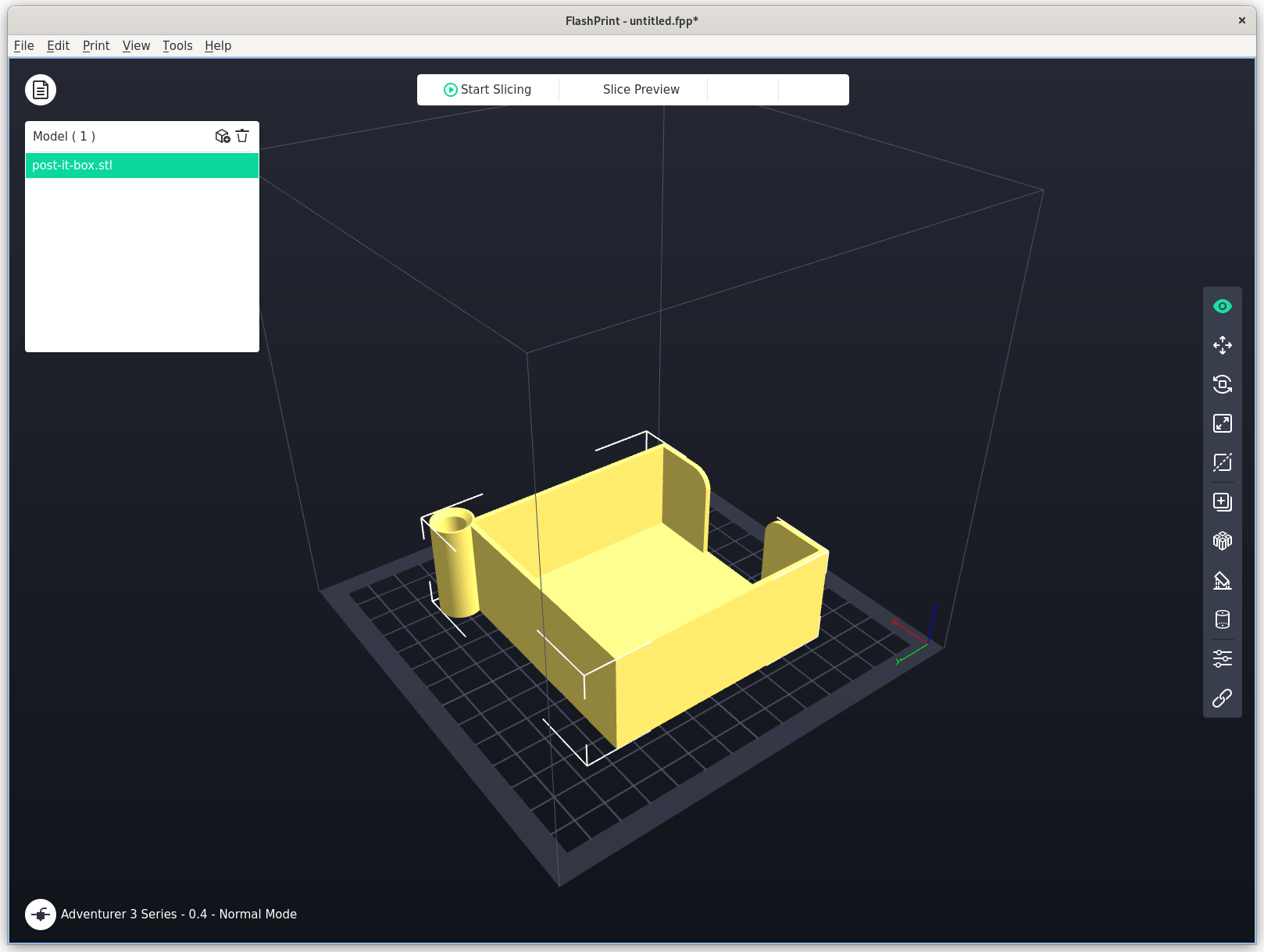
- Click File > Load (or press Ctrl+O) to import a 3D model file. FlashPrint accepts STL, OBJ, 3MF, and FPP formats.
- The model appears on the virtual build plate. Use the toolbar on the left to move, rotate, or scale the model as needed.
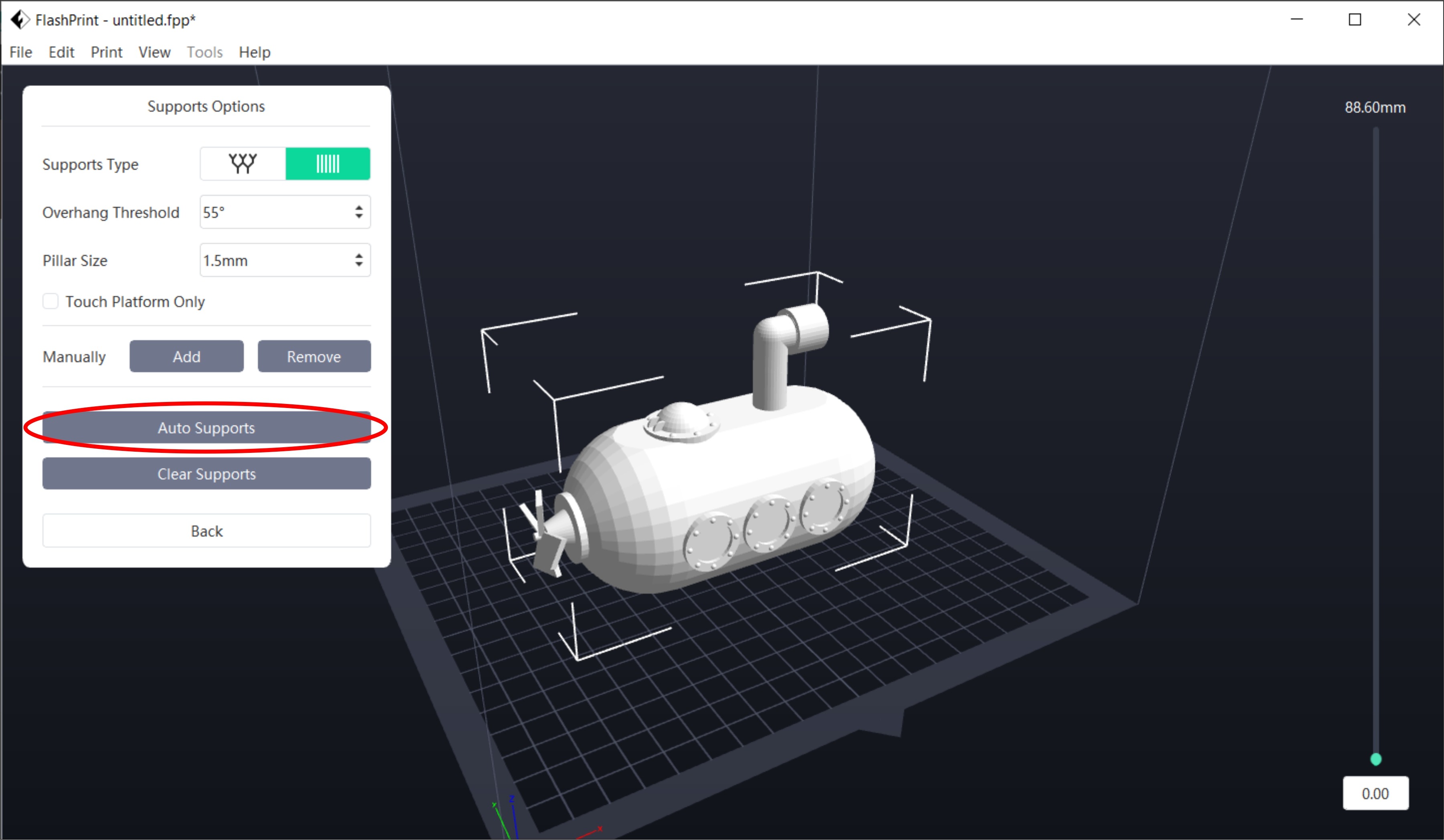
- Click “Supports” in the left toolbar if your model has overhangs. Choose between Linear or Tree supports and click “Auto Supports” to generate them.
- Click the “Print” button (or Ctrl+P) in the top toolbar. If you are in Basic Mode, FlashPrint will slice with default settings. In Expert Mode, you can adjust layer height, infill, speed, and other parameters before slicing.
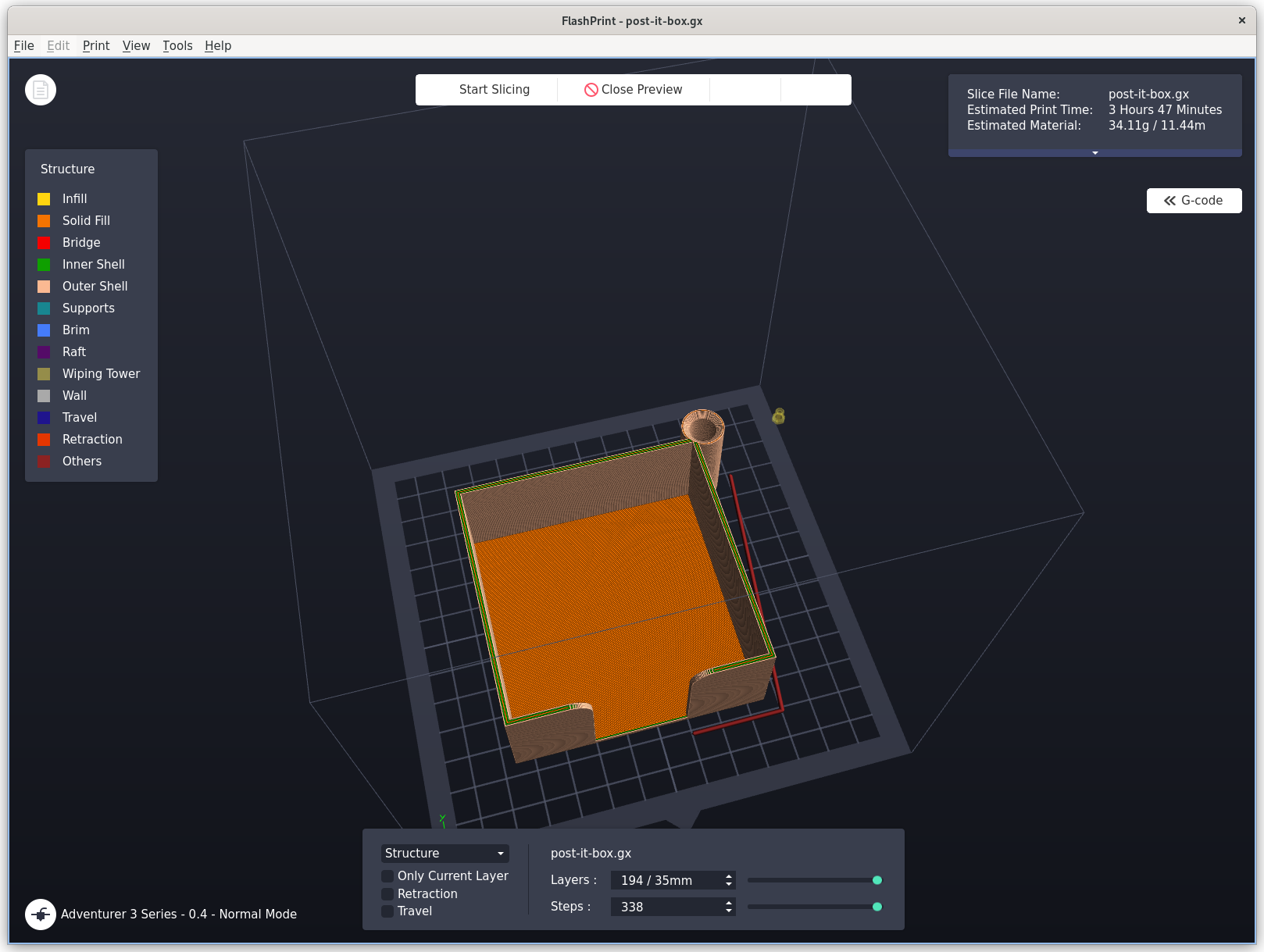
- After slicing completes, use the preview slider on the right to scroll through layers and verify the toolpath looks correct.
- Click “Send to Printer” (for WiFi) or “Save” to export the G-code file to a USB drive for transfer to your printer.
Ready to get started? Download FlashPrint 5.8.7 from the download section above.
Frequently Asked Questions
Answers to the most common questions about FlashPrint
Is FlashPrint free to download?
Yes, FlashPrint is completely free to download and use. There are no paid tiers, no premium features locked behind a subscription, and no ads. FlashForge provides it at no cost as the companion slicer for their 3D printers. You do not need to create an account to download or use it.
Is FlashPrint safe for Windows 11?
Yes, FlashPrint is safe to install and run on Windows 11. It is developed and digitally distributed by FlashForge Technology Co., Ltd., a well-established 3D printer manufacturer founded in 2011. Some antivirus programs may flag the installer as a false positive — this is a known issue. Always download from the official FlashForge website to ensure you get an unmodified installer.
Does FlashPrint work with non-FlashForge printers?
FlashPrint is designed and optimized specifically for FlashForge printers. While it can technically generate standard G-code, the built-in profiles, WiFi printing, and camera monitoring features only work with FlashForge hardware. If you own a non-FlashForge printer, Cura or PrusaSlicer would be a better choice since they include profiles for hundreds of printer models from different manufacturers.
FlashPrint vs Cura — which is better?
It depends on your printer. If you own a FlashForge printer and want the simplest workflow, FlashPrint is the better choice — it comes with pre-tuned profiles for every FlashForge model and supports WiFi printing out of the box. Cura is more powerful overall with far more features, plugins, and community profiles, but it requires more setup time for FlashForge printers. Many FlashForge users start with FlashPrint and switch to Cura when they need advanced features.
What are the system requirements for FlashPrint?
FlashPrint is lightweight. You need at least Windows 10 (64-bit), an Intel Core i3 processor, 4 GB of RAM, and 500 MB of free disk space. A recommended setup is an Intel Core i5, 8 GB of RAM, and a dedicated GPU with OpenGL 3.0 support. It also runs on macOS 10.8+ and Linux. Check the system requirements section above for the full breakdown.
Is FlashPrint being discontinued?
FlashPrint 5 has reached end-of-life. Version 5.8.7 is the final release, and no new features or bug fixes will be added. FlashForge has shifted development to Orca-FlashForge, a new slicer based on the open-source OrcaSlicer project, which is recommended for newer printers like the Adventurer 5M series. However, FlashPrint 5.8.7 remains available for download and continues to work with all supported FlashForge printers.
What file formats does FlashPrint support?
FlashPrint can import STL, OBJ, 3MF, FPP (FlashForge proprietary), and SLC files. It also accepts image files (PNG, JPG, BMP) for the built-in relief and lithophane design tool. For output, it generates standard G-code and GX format (FlashForge’s proprietary format with embedded preview thumbnails).
How do I update FlashPrint to the latest version?
FlashPrint does not have a built-in auto-updater. To update, visit the download section on this page and download the latest installer. Run it and install over your existing version — your settings and profiles will be preserved. The current and final version is 5.8.7.
Does FlashPrint support tree supports?
Yes. FlashPrint offers both linear (standard) and tree support structures. Tree supports branch from the build plate and minimize contact points with the model, making them easier to remove and leaving fewer marks on the print surface. You can generate tree supports automatically or add them manually by clicking on specific areas of the model.
Can I use FlashPrint on Linux?
Yes. FlashPrint is officially available on Linux via Flatpak. Community packages are also available for Arch Linux (AUR) and Debian/Ubuntu (.deb). Install via Flatpak with flatpak install com.flashforge.FlashPrint or from the AUR with yay -S flashprint.
Why does FlashPrint trigger my antivirus?
This is a known false positive that affects some antivirus engines. The FlashPrint installer is safe when downloaded from FlashForge’s official website. If your antivirus blocks the download or installation, temporarily whitelist the file or add an exception for the FlashPrint installer. The issue is typically caused by heuristic detection flagging the unsigned driver installation component.
What printers are compatible with FlashPrint?
FlashPrint includes built-in profiles for all FlashForge FDM printers: the Adventurer series (3, 4, 5M), Creator series (Pro, Pro 2, 4), Dreamer series, Guider series (2, IIS, 3 Ultra), and Finder series (1, 2, 3). Each printer has pre-tuned profiles for different materials and quality settings, so you can start printing immediately after selecting your model.
FlashPrint vs Orca-FlashForge — what is the difference?
Orca-FlashForge is FlashPrint’s successor, built on the open-source OrcaSlicer engine. It offers more advanced features like pressure advance calibration, input shaping tuning, and better multi-material support. It is actively developed and recommended for newer FlashForge printers (especially the Adventurer 5M series). FlashPrint 5 remains a good choice for older FlashForge printers and users who prefer its simpler interface.
Have more questions? Check the official FlashForge wiki for detailed documentation and guides.